
How to export a WhatsApp chat
Two minutes, no apps to install. Then come back and drop the file on the home page.
iPhone
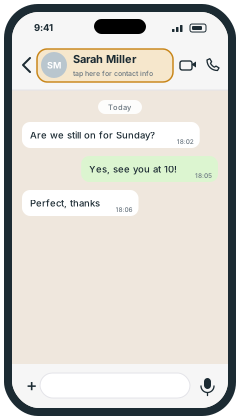 Open the chat and tap the contact or group name at the top.
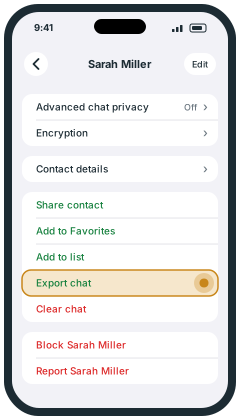 Scroll down and tap Export chat (in green, just above Clear chat).
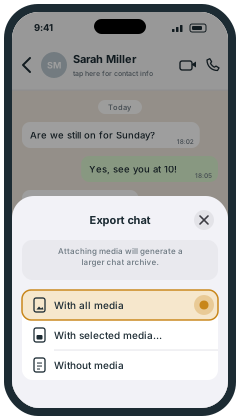 Tap With all media to include photos, or Without media for text only.
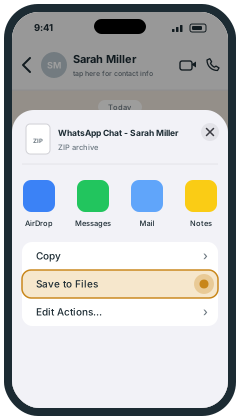 In the share menu, tap Save to Files and pick a folder you will remember.
Android
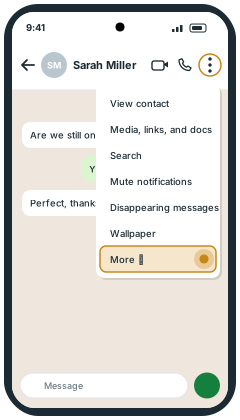 Open the chat, tap ⋮ at the top right, then More.
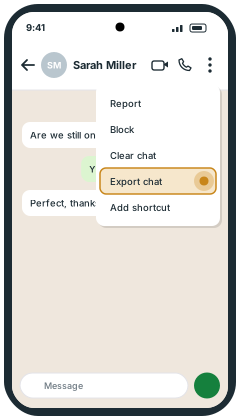 Tap Export chat.
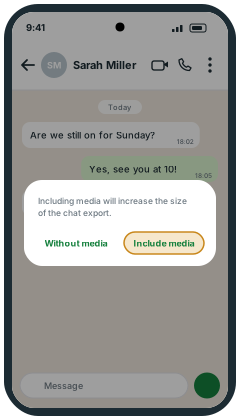 Tap Include media to add photos, or Without media for text only.
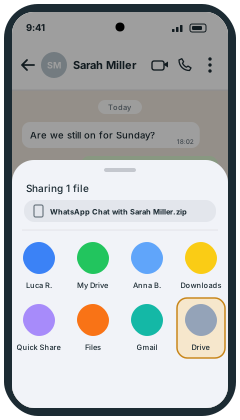 In the share menu, pick Drive or Files so you can open the .zip later.
Then turn the chat into a PDF
Open Amberword, tap choose a file and pick the export: a .zip file (with media) or a .txt file (text only). Your chat is opened by your browser and never uploaded.
Can't find Export chat?
If someone in the chat has turned on Restricted chat (called Advanced chat privacy in earlier versions of WhatsApp), nobody can export that chat while the setting is on. You can see it near the top of the chat info.
What does exporting a WhatsApp chat mean?
It makes a copy of the chat outside WhatsApp: a text file with the messages, dates and names and, if you include media, the photos and other files with it in a .zip. The chat stays as it was on your phone. The file is not a backup, because you cannot import it back into WhatsApp, but you can keep it, open it on a computer or turn it into a PDF.
Can I export all my chats at once?
No. An export always starts from inside one chat, so repeat the steps above for each chat you want to keep. WhatsApp's backup (to Google Drive or iCloud) saves them all together, but it only restores them into WhatsApp: it is not a file you can open, print or turn into a PDF.
How do I print the chat?
WhatsApp has no print button, so the usual way is to export the chat and print a PDF of it. See how to print WhatsApp messages.